


Starlink Ethernet Adapter Ultimate Guide (V1, V2 & V3): Setup, Speed, and Troubleshooting
Whether you're tired of intermittent Wi-Fi connections during video calls, frustrated by lag spikes in your favorite games, or simply want to unlock the full potential of your Starlink connection, the Starlink Ethernet Adapter can make a world of difference.
EVOOOR has selected adapters for V1, V2, and V3, and this compact yet powerful accessory can transform your satellite internet into a stable, low-latency wired network—perfect for smooth online gaming, stable remote work, or high-speed data transfer to your NAS or router.

Starlink Ethernet Adapter Explained: Why Wired Still Matters
Starlink routers are built for Wi-Fi first, but wireless isn't always the best for performance-critical users. Many find that switching to Ethernet dramatically improves connection stability and speed.
Starlink Wired vs Wi-Fi: Is Starlink Faster with Ethernet?
A direct Ethernet connection typically reduces latency by 20–40% compared to Wi-Fi. It eliminates interference and provides consistent speeds during streaming, large downloads, or cloud gaming.
Real-World Use Cases:
- Gamers: Lower ping for online matches (Starlink gaming low-latency Ethernet setup).
- Remote Workers: No dropped Zoom calls or packet loss.
- Data Users: Ideal for NAS and large file transfers (Gen 3 Starlink connects to NAS).
What Is a Starlink Ethernet Adapter (V1, V2 & V3)?
A Starlink Ethernet Adapter converts the proprietary Starlink cable (SPX connector) into a standard RJ45 port, enabling a direct wired connection.
V1 – Round Dish Adapter
Made for the original circular dish (Gen 1). Suitable for indoor, single-device wired use.
V2 – Standard Actuated Kit Adapter
Designed for Gen 2 rectangular dishes. Stable for home users and moderate network setups.
V3 – Gen 3 & Mini Waterproof Adapter
The V3 Ethernet Adapter supports Gen 3 kits and Mini routers, featuring IP67 waterproof housing, making it ideal for RV camping and outdoor installations (Starlink V3 adapter outdoor waterproof setup).
Starlink Ethernet Adapter Comparison: V1 vs V2 vs V3
| Feature | V1 | V2 | V3 |
|---|---|---|---|
| Compatible Kit | Round Dish | Standard Actuated | Gen 3 / Mini |
| Max Speed | 1 Gbps | 1 Gbps | 1 Gbps |
| Connector | Legacy | SPX | SPX-RJ45 |
| Waterproof | No | Partial | Yes (IP67) |
| Use Case | Indoor | Home | Outdoor / RV / Car |
| Need for Gen 3 | ❌ | ❌ | Optional |
Starlink V2 vs V3: Real Speed & Durability Test
The V3 adapter offers more stable throughput and enhanced moisture protection compared to the V2. It also handles outdoor temperature changes without disconnection — perfect for RV setups and permanent roof installations.
Starlink Ethernet Adapter Compatibility by Kit
- Gen 1 (Round Dish): Requires V1 adapter.
- Gen 2 (Standard Actuated): Needs V2 adapter (Ethernet adapter for Starlink Standard Actuated Kit).
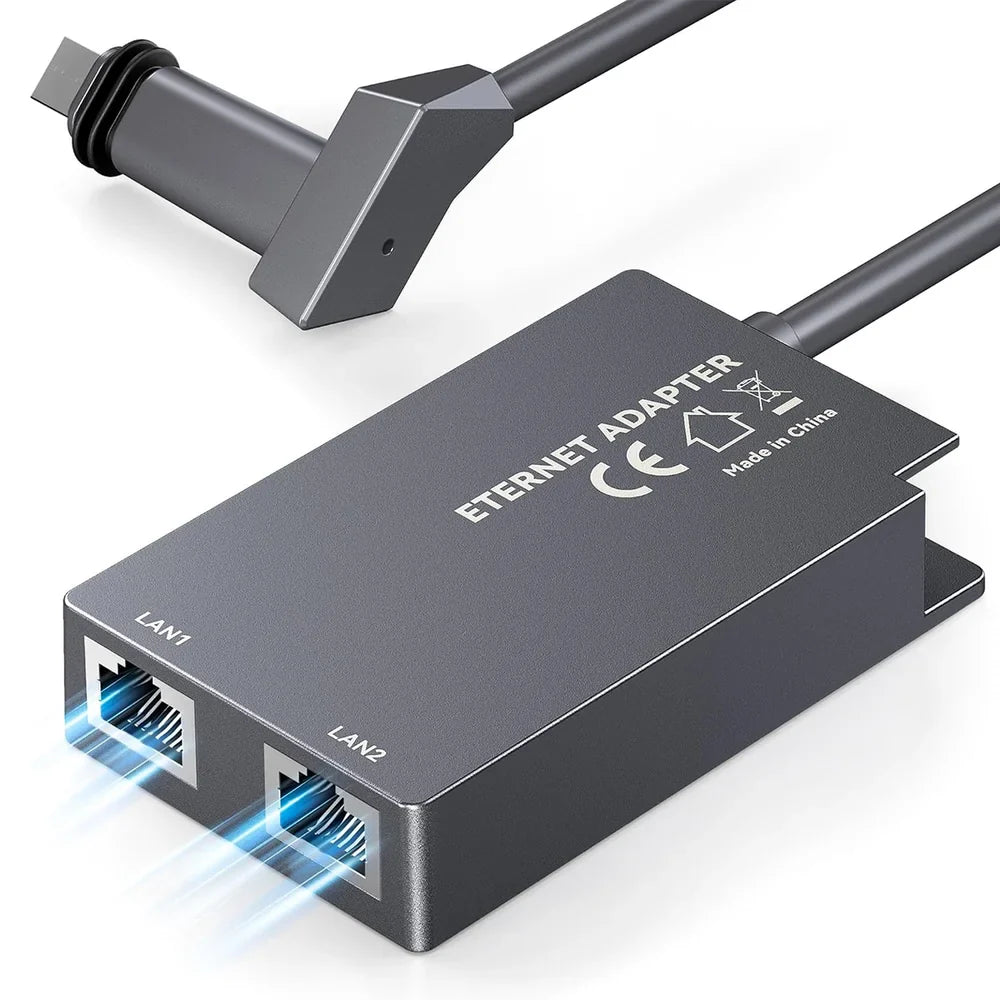
- Gen 3 (Standard / Mini): Includes two built-in LAN ports; V3 adapter adds outdoor waterproofing or extended cabling.
- High Performance Kit: Limited third-party compatibility via SPX-to-RJ45 converters.
💡 Tip: If your Gen 3 router already has dual Ethernet ports, the V3 adapter is optional — mainly proper for RV or outdoor installations.
How to Set Up a Wired Connection to Starlink (Step-by-Step)
Starlink Ethernet Adapter Setup for Home Use
- Identify your Starlink kit version.
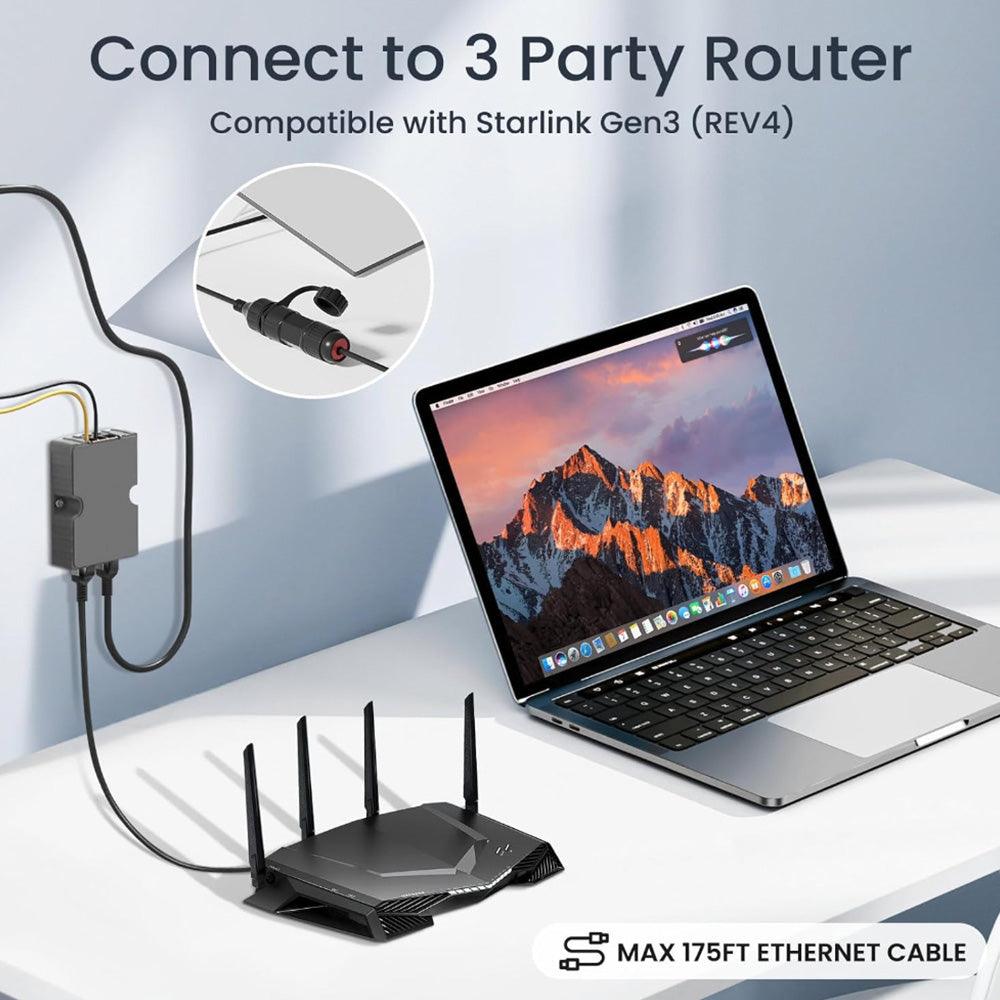
- Connect Starlink cable → Ethernet Adapter → RJ45 → Device/Router.
- Open the Starlink App → Settings → Enable Bridge Mode (for external routers).
- Test your speed, ping, and latency after connection.

Bridge Mode for External Router Integration
Activating Bridge Mode disables Wi-Fi on the Starlink router, letting your own router handle traffic distribution — ideal for mesh systems, gaming routers, or enterprise LAN setups.
Starlink Wired Connection Speed Test
Users report up to 30% higher stability and 15–25% lower ping. To maximize speed:
- Use Cat6 or Cat7 cables under 50 meters.
- Avoid powerline adapters.
- Check the Starlink App "Statistics" for packet loss under load.
Starlink Ethernet Adapter Advanced Setup: RV, Outdoor & Office
Starlink V3 Ethernet Adapter RV Camping Installation Guide
For mobile users, the V3 adapter ensures a waterproof and vibration-resistant connection.
Steps:
- Mount the adapter under the RV awning or in a sealed junction box.
- Use short, shielded RJ45 cables.
- Keep the SPX connector elevated from water.
Outdoor Waterproof Setup & Maintenance
Outdoor setups need attention to moisture and dust:
- Apply dielectric grease on connectors.
- Check seals monthly.
- Replace any corroded RJ45 heads.
Starlink Ethernet Adapter Office & Multi-Room Setup
In office environments, the adapter connects Starlink directly to a switch or router cluster, providing seamless LAN extension across multiple rooms.
Troubleshooting: Fix Starlink Ethernet Adapter Problems
Starlink Ethernet Adapter Not Detected
If the adapter isn't recognized:
- Confirm cable orientation.
- Reboot the router.
- Update firmware via the Starlink App.
V3 Adapter Water Damage Repair
If water entered the adapter:
- Disconnect immediately.
- Dry with silica gel and reseal.
- Replace the O-ring or apply waterproof tape.
Slow Ethernet Connection
- Check the cable quality and avoid using cheap, unshielded lines.
- Verify Bridge Mode is active (Wi-Fi disabled).
Starlink Ethernet Adapter for Gaming, NAS & PoE
Starlink Gaming Low Latency Settings
For competitive gaming:
- Use wired mode only.
- Disable quality of service on routers to prevent packet delay.
- Run "ping -t 8.8.8.8" to verify consistent latency.
Connecting NAS or Server
Many users ask: "Can I connect my NAS directly to Starlink?"
Yes — with an Ethernet Adapter. Connect the NAS directly to the LAN port, then enable Bridge Mode for a private subnet.
PoE Support
Starlink adapters do not support Power over Ethernet (PoE). Use a separate injector only for powered devices downstream of the injector.
Alternative & Third-Party Ethernet Adapters
EVOOOR SPX-RJ45 Waterproof Adapter
A premium third-party Gen 3 solution, offering extended cable reach and IP67 sealing.
Generic SPX-to-RJ45 Converters
Found on Amazon and eBay. Use with caution; not all are Starlink-certified.
FAQ: Everything About Starlink Wired Connection
Can I use Starlink without Wi-Fi?
Yes — connect via Ethernet Adapter and enable Bridge Mode.
Is the V3 Adapter backward compatible?
No, it only supports Gen 3 and Mini routers.
How do I fix the adapter if it's not recognized?
Replug, reboot, and confirm firmware is updated.
Can I use Starlink for NAS or gaming?
Absolutely. Ethernet ensures lower ping and consistent data transfer.
Does Starlink support PoE?
No — it transmits data only, not power.
Choosing the Right Starlink Ethernet Adapter
Each version fits a specific need:
- Home Users: V2 adapter for steady, simple wired use.
- Outdoor & RV Users: V3 Waterproof Adapter for Durable Performance.
- Gen 3 Users: Use built-in LAN ports or V3 for outdoor flexibility.
Final Tip:
"For faster, safer, and more reliable Starlink performance, use the right Ethernet Adapter for your setup — and keep your connection strong even in the toughest environments."